File Manager
Architecture and interior firms store, approve and send out their drawings here, and I designed it on my own. Over five versions between 2023 and 2025 I took it from a files table to reviews, transmittals, GFC sets and settings each firm controls.
- DWGBedroom_Drawing.dwgWaiting on youGFC
- PDFKitchen_Elevations.pdfWaiting on youTender
- DWGSite_Plan_V4.dwg1 of 2 approvedMunicipal
- DWGLiving_Ceiling.dwgApproved
· MansiGFC - PDFElectrical_Layout.pdfRejected
· NaomiGFC - DWGWardrobe_Details.dwgDraft
- Role
- Lead and sole designer, research to handoff
- Worked with
- Founders, product, engineering
- Platform
- Web, inside iDesign.Market
- Scale
- 5 versions · ~240 screens
Small design firms revise and approve drawings all the time, and the approvals live in chat. Nobody can say which version is current, what it was approved for, or who has it.
48%
of rework on US job sites came from poor communication and poor project data, in FMI and PlanGrid’s 2018 survey of nearly 600 construction leaders.
1 in 5
Fewer than one in five firms consistently used anything beyond email, text and phone calls to share project data.
Product context
Where firms on iDesign.Market keep their drawings, get them approved and send them to site.
Terms used on this page
- 1VersionEach upload of a drawing, kept in order.
- 2ReviewWho has to approve it, and in what order.
- 3Approval reasonWhat it’s approved for.
- 4GFC setGood for construction: safe to build from.
- 5TransmittalThe numbered note it goes to site with.
Bedroom_Drawing.dwgDrawn by Hardesh · Designer
V21Review2
- MS
Mansi ShahProject lead
✓ Approved - RO
Rahul OjhaClient
✓ Approved
Approved for Construction3
TR-0095 to site team
User research
I watched session recordings and spoke to designers, leads and admins. This sample follows one drawing through six hand-offs, mostly on WhatsApp.
1Designer · Exports a PDF
‹ Sharma Residence / Drawings
- PDFBedroom_V3_final.pdf19 Mar
- PDFBedroom_V3_final_new.pdf26 Mar
- PDFBedroom_V3_FINAL_rev2.pdf2 Apr
1The version is in the file name. Which one is current?
2Project lead · Reviews on WhatsApp
Sharma Residence · Team
Hardesh · DesignerPDFBedroom_V3_FINAL_rev2.pdf3 pages
Page 2: move the wardrobe 150 mm, it hits the door.
2Comments sit in chat, away from the drawing.
3No order of approvers, and no due date.
3Client · Says “OK” in chat
Rahul Ojha · Client
Sharing the bedroom drawing for your approval.
Rahul · ClientLooks fine. OK
4The OK doesn’t say what it covers: tender, permit or construction?
4Designer · Sends a new PDF
Sharma Residence · Team
Hardesh · DesignerPDFBedroom_V4.pdf3 pagesSmall change on the wardrobe. Rest is the same.
5Does the client’s OK still stand for V4? Nobody asks.
5Project lead · Forwards it to site
Site · Sharma Residence
↪ ForwardedPDFBedroom_V3_FINAL_rev2.pdf3 pages
6No record of who got which version. Here, rev2 went out a day after V4.
6Site team · Builds from a print
Bedroom · 17th Floorrev2
The site builds from whichever print reached it: the drawing before the client’s last change.
Pain points
Each problem, and the hand-off where it shows up.
| No. | What goes wrong | Where |
|---|---|---|
| 1 | The version lives in the file name. | Designer exports a PDF |
| 2 | Comments sit in chat, away from the drawing. | Project lead reviews on WhatsApp |
| 3 | No order of approvers, and no due date. | Project lead reviews on WhatsApp |
| 4 | An OK doesn’t say what it covers. | Client says “OK” in chat |
| 5 | A new version arrives mid-approval. | Designer sends a new PDF |
| 6 | Nothing records what went to site. | Project lead forwards it to site |
Competitor analysis
I compared four tools using their public pages and help docs in 2026, looking at drawing controls and the firms they serve.
- Chat and drivesWhat most firms use
Versions only in file names. No ordered approvers, purpose or transmittals. Free and familiar.
- PowerplayIndian site teams
Indian and mobile. None of the four is described on its public pages.
- Autodesk DocsDesign and build teams
Compares versions, runs multi-step and group reviews, keeps a status per file and sends transmittals from a review. An admin sets it up.
- ProcoreGeneral contractors
Automatic revisions, submittal steps, purpose on the transmittal, numbered transmittals. Priced on volume.
- File ManagerInside iDesign.Market
Versions grouped per file, one, group or chain approvals, a reason on every review, transmittals of approved files only. Set up in settings.
What I took from it
What other tools showed me about reviews and transmittals.
Finding 1
Small firms need the same three steps
Versions, ordered reviews and transmittals. Large-contractor tools have them; File Manager has all three.
Finding 2
The purpose belongs on the approval
Procore puts it on the transmittal, ISO 19650 in a status code. I made it part of the approval.
Finding 3
A small firm has no document controller
So reasons and folder templates are settings the firm fills in once.
Design goals
Drawn from the six pain points and the other tools: what the redesign had to do for a firm.
Goal 1
Show which version is current
The latest version up front, the earlier ones kept behind it.
Goal 2
Say what each approval covers
Who approved, in what order, and what they approved it for.
Goal 3
Record what went to site
Which version went to which contractor, and why.
File states
I mapped each file state with engineering, including what happens when a new version arrives during approval.
Design principles
Four rules I set with the state map, and checked each screen against.
Rule 1
Every status names a person
Every row says who it’s waiting on and who approved it.
Rule 2
Check files before they’re sent
A transmittal flags any file not approved for its reason.
Rule 3
Firms set the rules in settings
Reasons and folders are set per firm, never built for one customer.
Rule 4
Every action is logged
Uploads, requests, rejections and moves, with who and when.
User flow
Four people move a drawing from upload to site. Rejections return to the designer; nothing reaches site until every approver signs off.
- Start and end
- A decision
- Rejected: back to the designer
- nFixes pain point n from the research
Information architecture
Folders, reviews, approvals, transmittals and the archive all point to the same files, so each drawing keeps one status.
Edge cases
I worked through each file state with the team on a FigJam board in May 2024. This table maps what happens when a new version arrives.
| The file is… | Upload only | Upload and self-approve | Upload and send for approval | Self-approve and send to GFC |
|---|---|---|---|---|
| No status | V2 becomes current. No prompt; it’s just a version. | Later, from the file menu. | Later, from the file menu. | — |
| In approval | The open request is withdrawn, with a warning first. V2 has no status. | Request withdrawn. V2 approved, with the reason on record. | Request withdrawn. V2 goes out for approval. | — |
| Approved | V2 becomes current; status resets. | V2 approved. | V2 goes out for approval. | — |
| Not approved | V2 becomes current; status resets. | V2 approved. | V2 goes out for approval. | — |
| Approved, in GFC | V2 uploaded. GFC keeps V1 until something happens. | V2 approved. GFC keeps V1 until it’s sent. | V2 in approval. GFC keeps V1 meanwhile. | GFC updates to V2, in both places. |
Clouded: the two cases to read first. In every case the GFC set changes only when someone approves the new version and sends it to GFC.
Bedroom_Drawing.dwg17th Floor · 4.2 MB
V1→V2Waiting on MansiGFCDue Fri, 8 Nov
Any choice below withdraws this request.
Upload onlyV2 becomes current, with no status.
Upload and approve it yourselfV2 is approved, with your reason on record.
Upload and send for approvalV2 goes out for a new review.
A warning before the choice
This is the second row of the table as a screen. When someone uploads a new version of a file that is waiting for approval, this dialog opens before anything changes.
- It says the file is already waiting for approval.
- It warns that any choice cancels that request.
- Three choices: upload only, upload and approve it yourself, or upload and send it for approval.
- Cancel leaves the file and its request as they were.
Layouts
The files workspace, the viewer and the transmittal. Almost every screen sits on one of them.
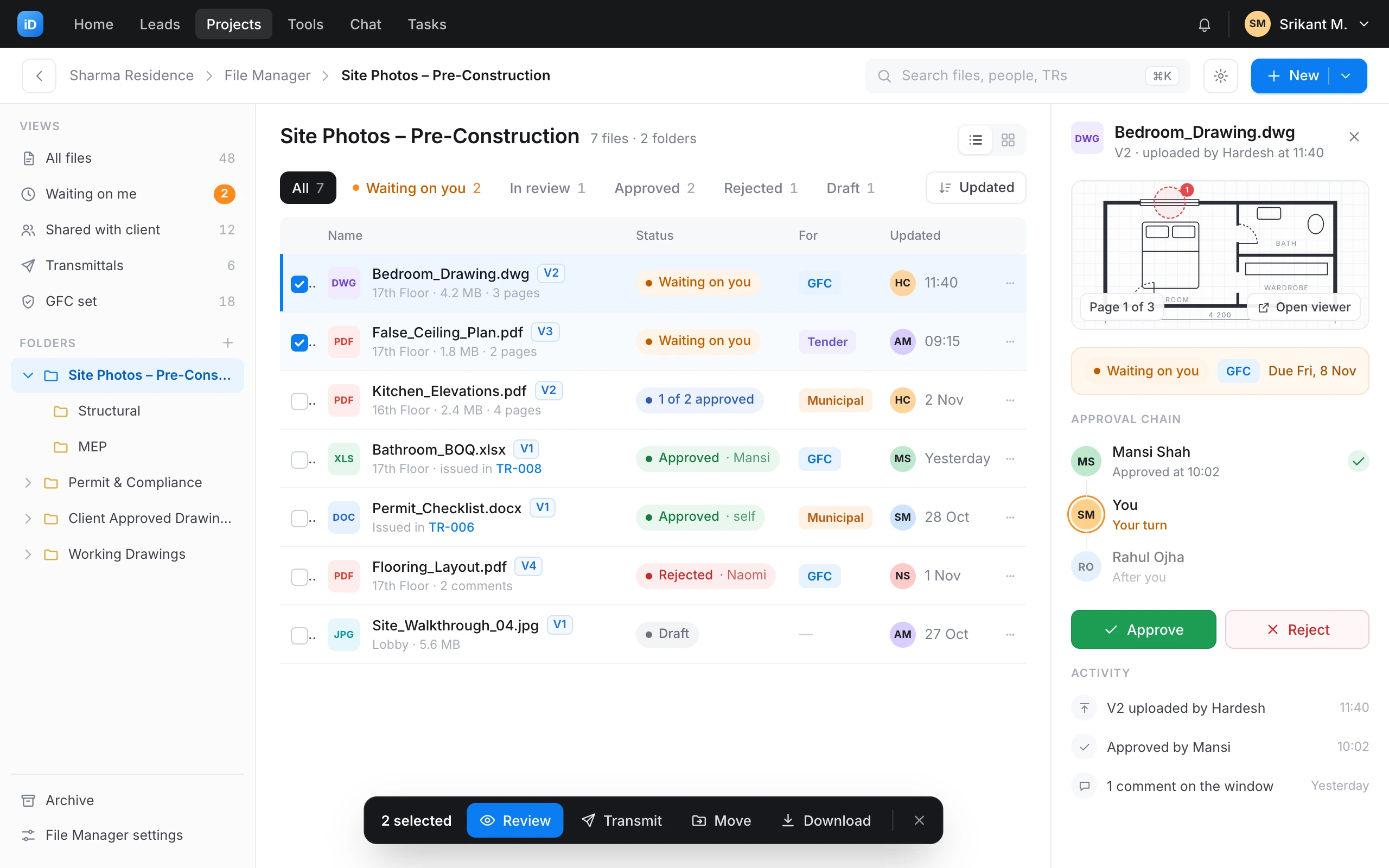
Views
All files48
Waiting on me2
Shared with client12
Transmittals6
GFC set18
Folders +
Site Photos – Pre-Construction
Permit & Compliance
Client Approved Drawings
Working Drawings
Archive
File Manager settings
Working Drawings6 files
Layout A
The files workspace
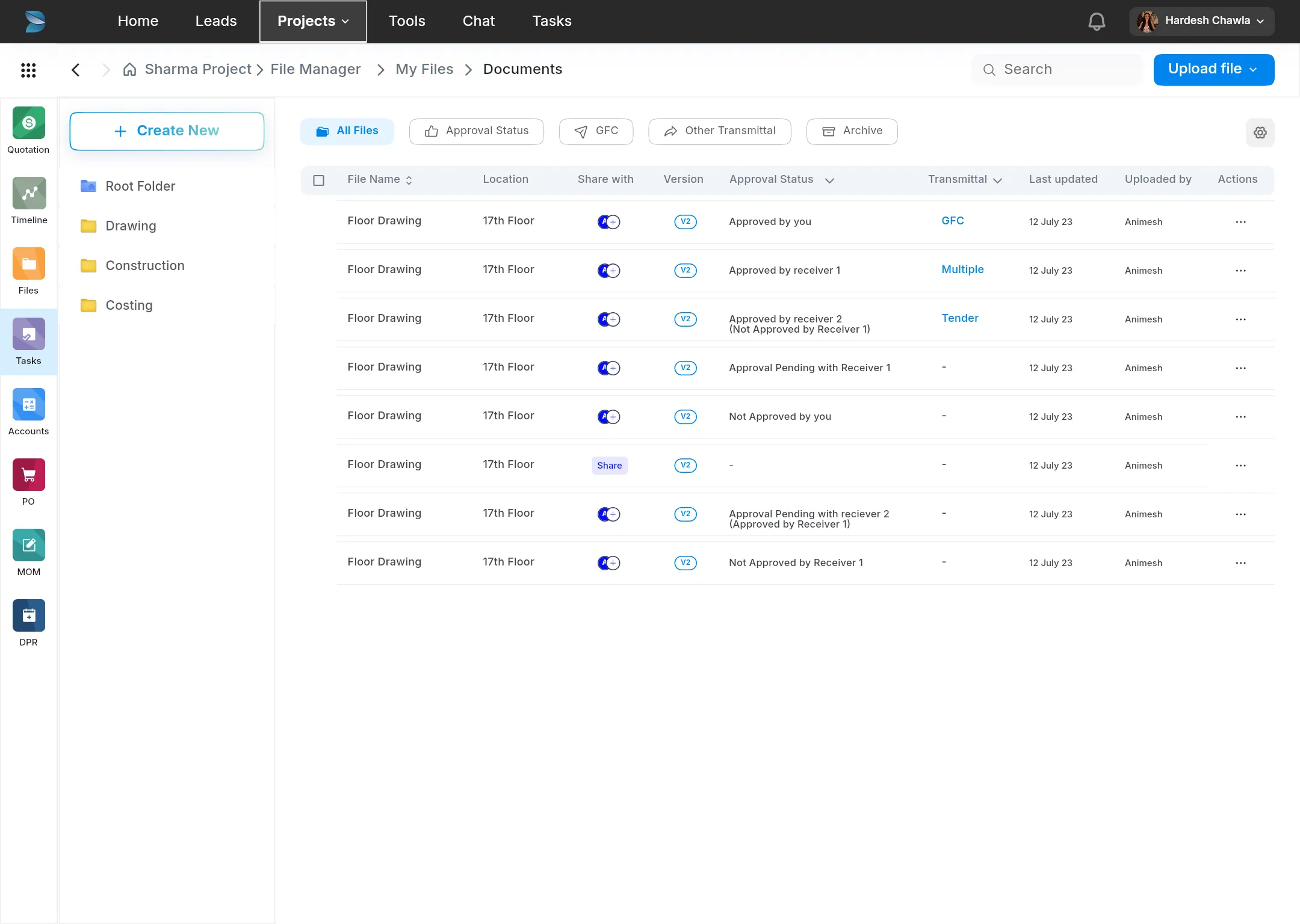
- One side panel for views and folders. A new project gets its folders from a template.
- Filters instead of tabs: reviews, transmittals and archive filter the same table.
- Status in the last column, written in full, with names.
- The version sits beside the name, so it doesn’t need a column.
- One “New” button for upload, folder and import.
Bedroom_Drawing.dwg V2V2 · uploaded by Hardesh at 11:40
Waiting on youGFCDue Fri, 8 Nov✕ Reject✓ Approve−100%+
‹ PreviousPage 1 of 3Next ›
Comments 3
Comment, or @mention someone
Mansi ShahPin 1 · 10:02
Shift the wardrobe 150 mm to clear the door swing.
HardeshReply · 10:40
Done in V2.
Rahul OjhaPage 2 · Yesterday
Can we confirm the finish on the bed wall?
Layout B
The viewer
- Approve and reject in the header, so a reviewer decides without leaving the drawing.
- The reason sits beside the status: GFC, tender or municipal.
- Comments pin to a page and a point.
- Previous and next, to work through a set without going back to the list.
Subject
Bedroom drawings for site
Reason
GFCGood for construction▾
Only files approved for GFC can go.
Files 3+ Add files
Layout C
Create transmittal
- Automatic numbering: no gaps, and nobody types transmittal numbers by hand.
- The reason for sending decides which files qualify, from the rules in settings.
- Files that don’t qualify stay visible, greyed out, with the reason.
- One primary action. A subject, a reason and the files are enough.
Design system
For version 3.0, I built the design system around file status.
95 colour styles, three style libraries, four icon sets. One palette, one type family, one radius, one icon set.
The paletteInter · 8px corners · 56px rows · 4-point grid
Version history
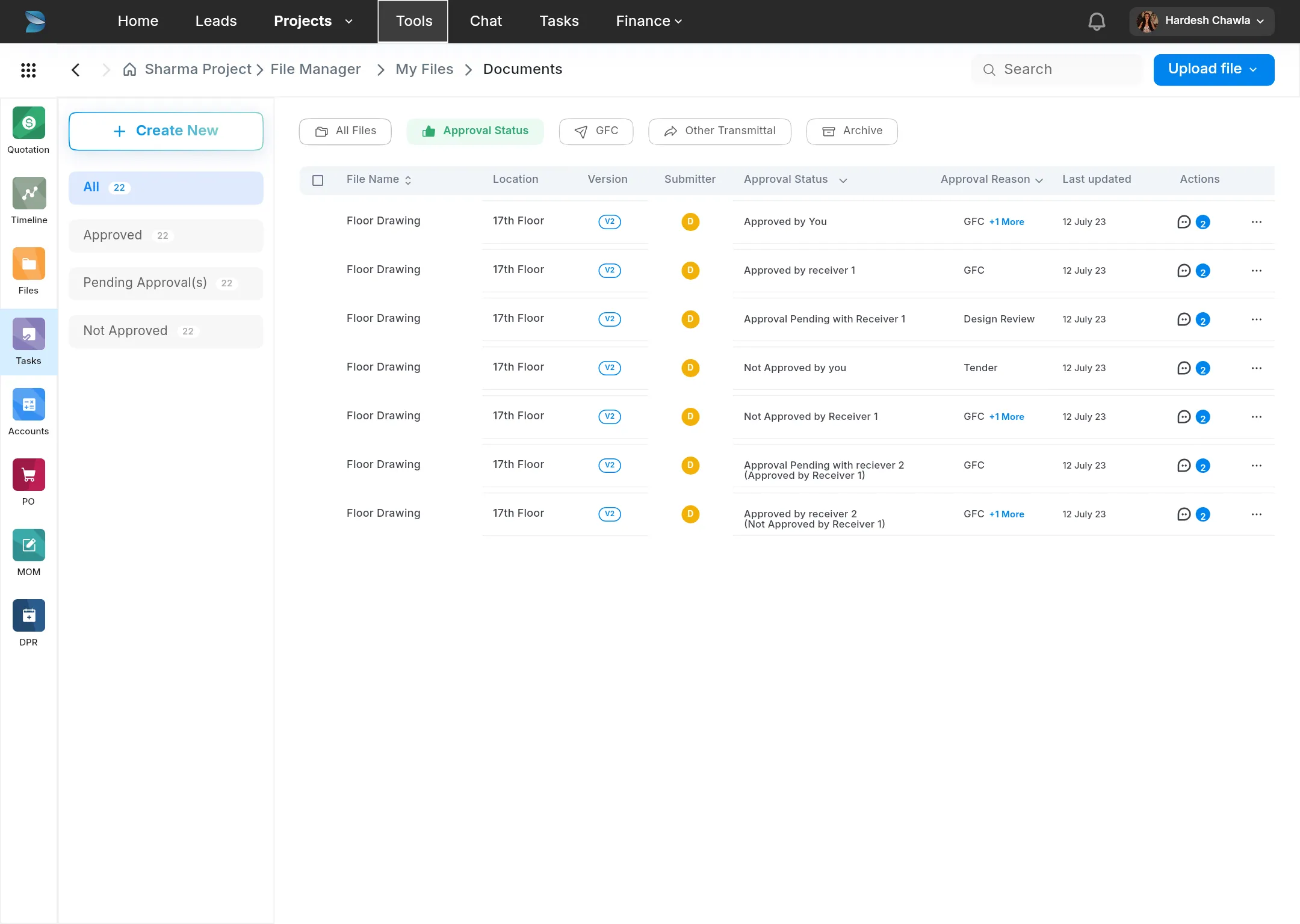
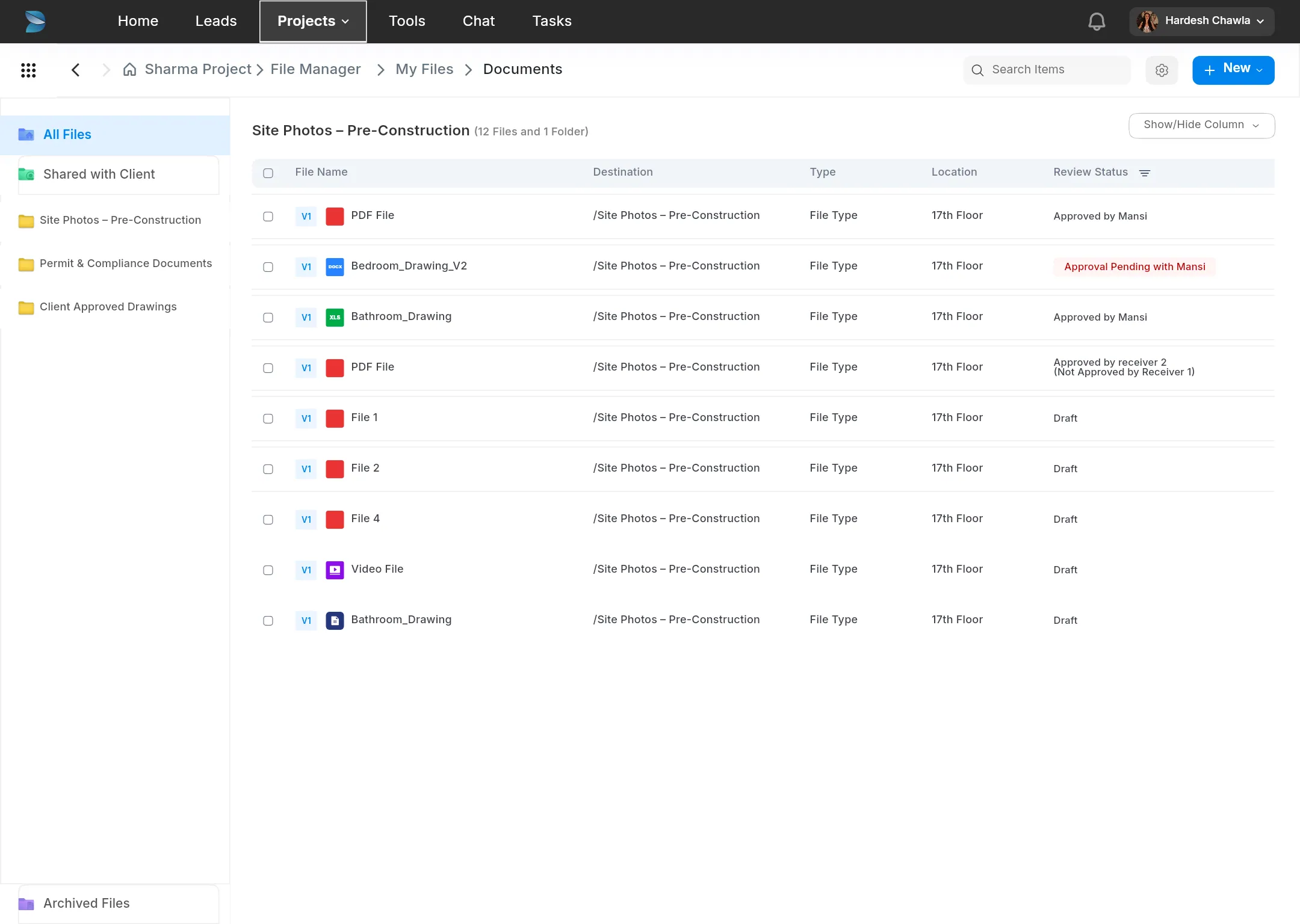
Five versions shipped from 2023 to 2025, each used on live projects. Select a row to see its screen.
| Rev | Date | What changed | Screens |
|---|---|---|---|
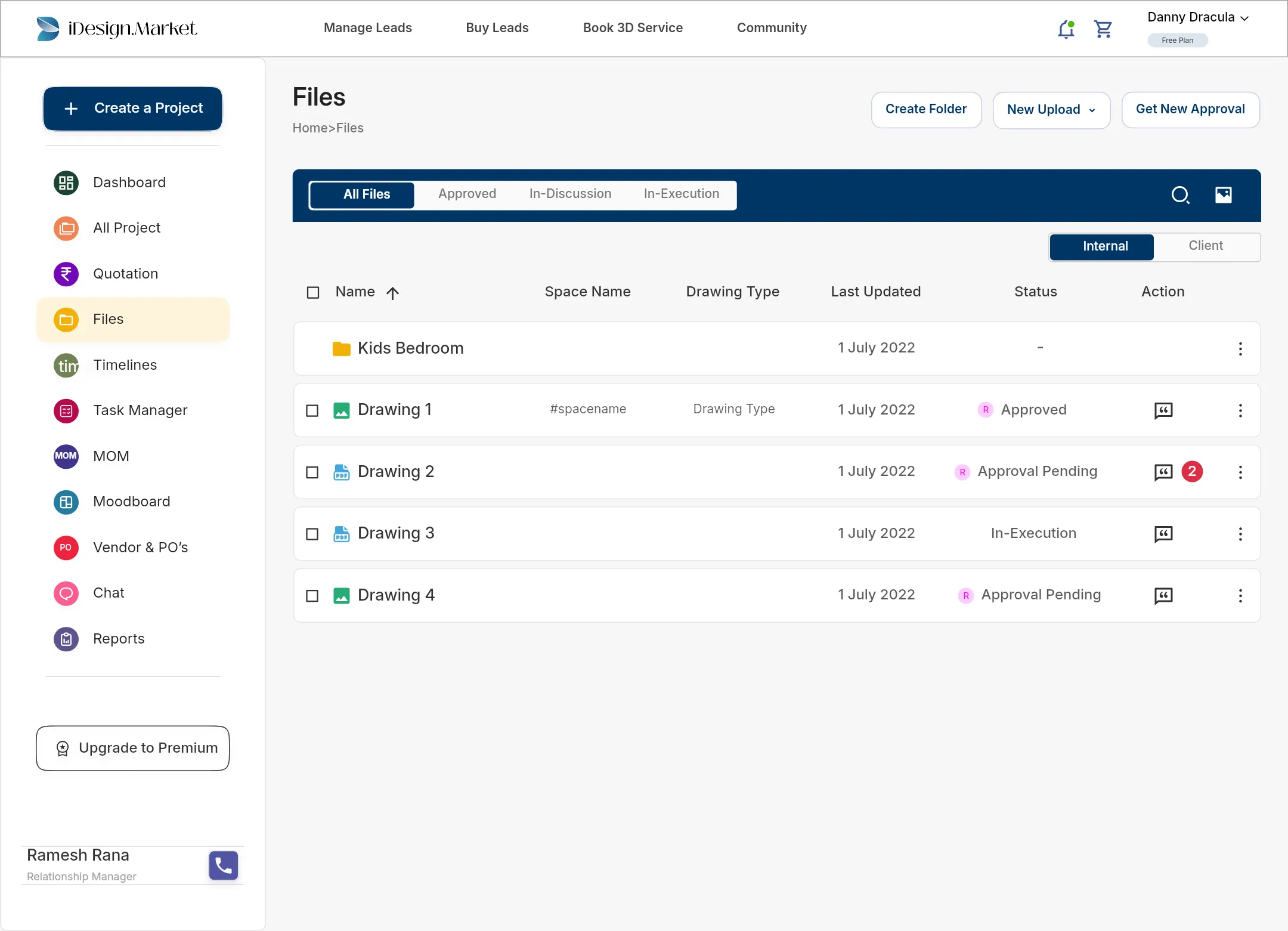
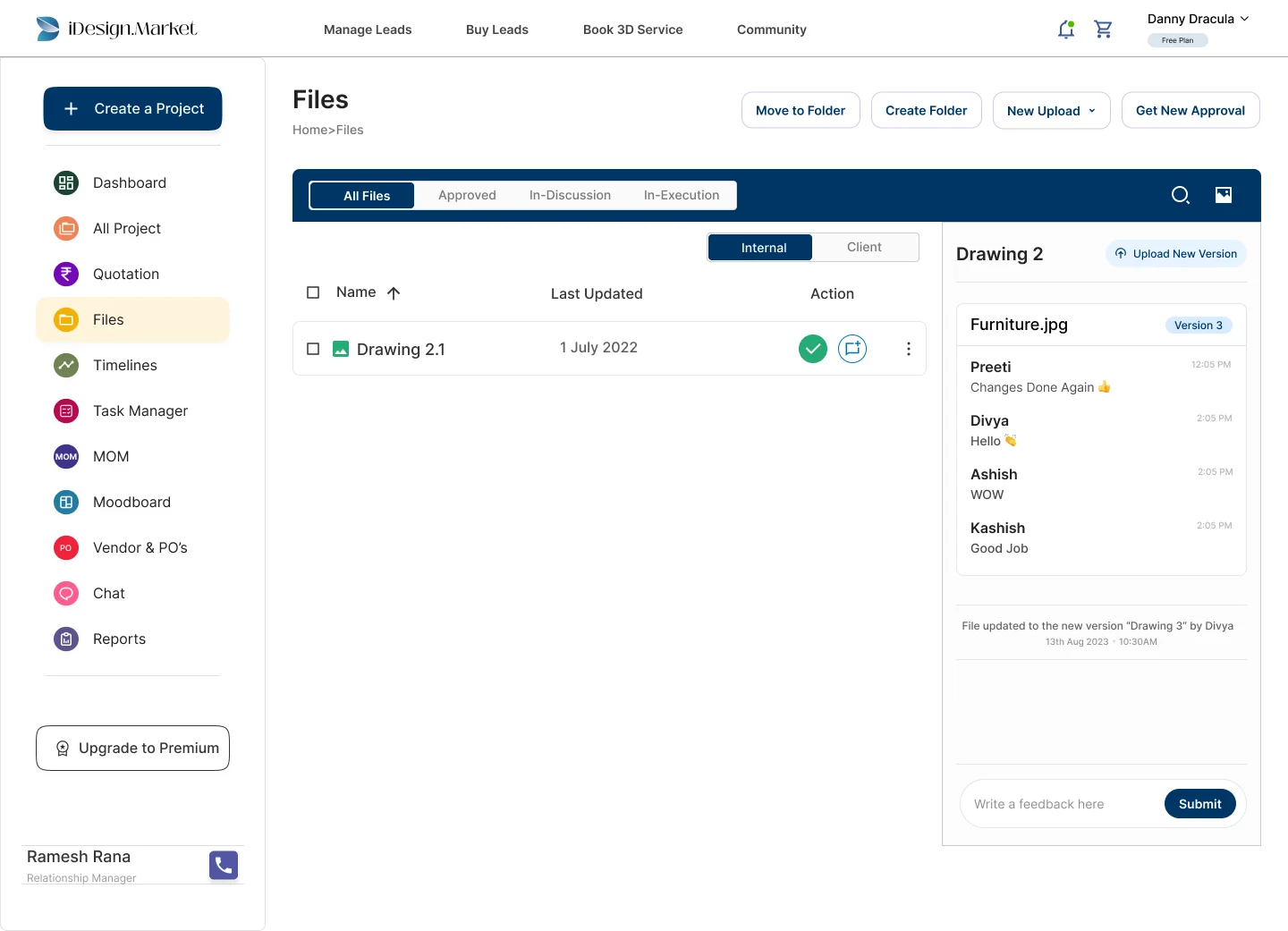
| 1.0 | 2023 | Ver 1.0A files table in the old dashboard: a status per file, version history, a feedback thread, an activity log, a gallery, and internal and client sharing. | 39 |
| 1.2 | 2023 | Ver 1.2Version numbers on every file, feedback kept per version, counts of feedback and approvals, who a file was sent to, a project activity panel and move to folder. | 30 |
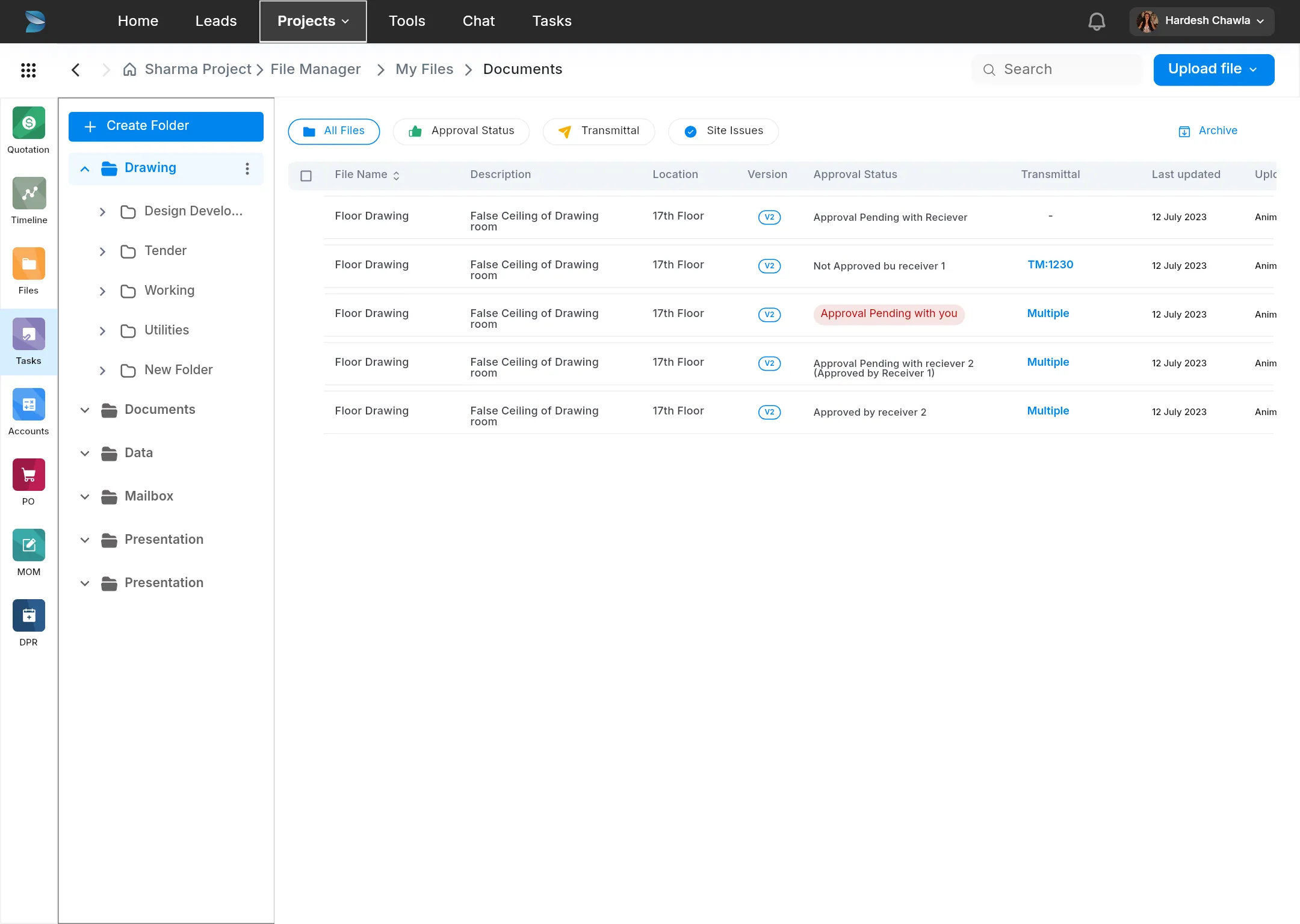
| 2.0 | 2023–24 | Ver 2.0Four rounds of enhancements: comments, file details, reviews with single, group or hierarchy approval, transmittals, GFC, site issues, permissions, archive, and the rules for uploading a new version. | 73 |
| 2.1 | 2024 | Ver 2.1The firm’s rules moved into settings: approval reasons, transmittal reasons and folder templates. Plus empty states, help, client views, copy and move, and Google Sheets import.Handed over 22 Jul and 26 Aug | 67 |
| 3.0 | 2025 | Redesign 3.0A redesign with fewer separate screens: one table with filters, a full-screen viewer with approve and reject in its header, and a log for every file. | 27 |
Screens per version, to scale236 in all
Final design
Version 3.0 shipped in 2025 with a filtered file table, a full-screen viewer, file logs and simplified settings.
Views
All files48
Waiting on me2
Shared with client12
Transmittals6
GFC set18
Folders +
Site Photos – Pre-Construction
Permit & Compliance
Client Approved Drawings
Working Drawings
Archive
File Manager settings
Working Drawings6 files
ActivityBedroom_Drawing.dwg
×V2 uploaded by HardeshToday, 11:40DownloadCompare with V1
Approved by MansiToday, 10:02
Review requested from Mansi, then RahulToday, 09:30
Rejected by NaomiYesterday, 16:12“Door swing clashes with the wardrobe.”
V1 uploaded by Hardesh2 Nov, 12:24
File logsWho did what, and when.
Reason
GFCGood for construction▾
Approvers
OneGroupChain
Mansi ShahProject lead
Rahul OjhaClient
+ Add approver
Due date
Fri, 8 Nov▾
Create reviewReason, single or chain, due date.
Save to
Site Photos – Pre-Construction▾
Drop files here, or browse
Bedroom_Drawing.dwg4.2 MB
Drawing ▾False_Ceiling_Plan.pdf1.8 MB
Drawing ▾Site_Walkthrough_05.jpg5.6 MB
Site photo ▾UploadWhere it goes, then what each file is.
Approval reasonsTransmittalsFolders
Every approval names one of these.
Good for construction
System···Sent out to bid
···For the permit set
···+ Add a reason
Ask for a reason on every approval
SettingsThe firm’s own approval reasons.
Design audit
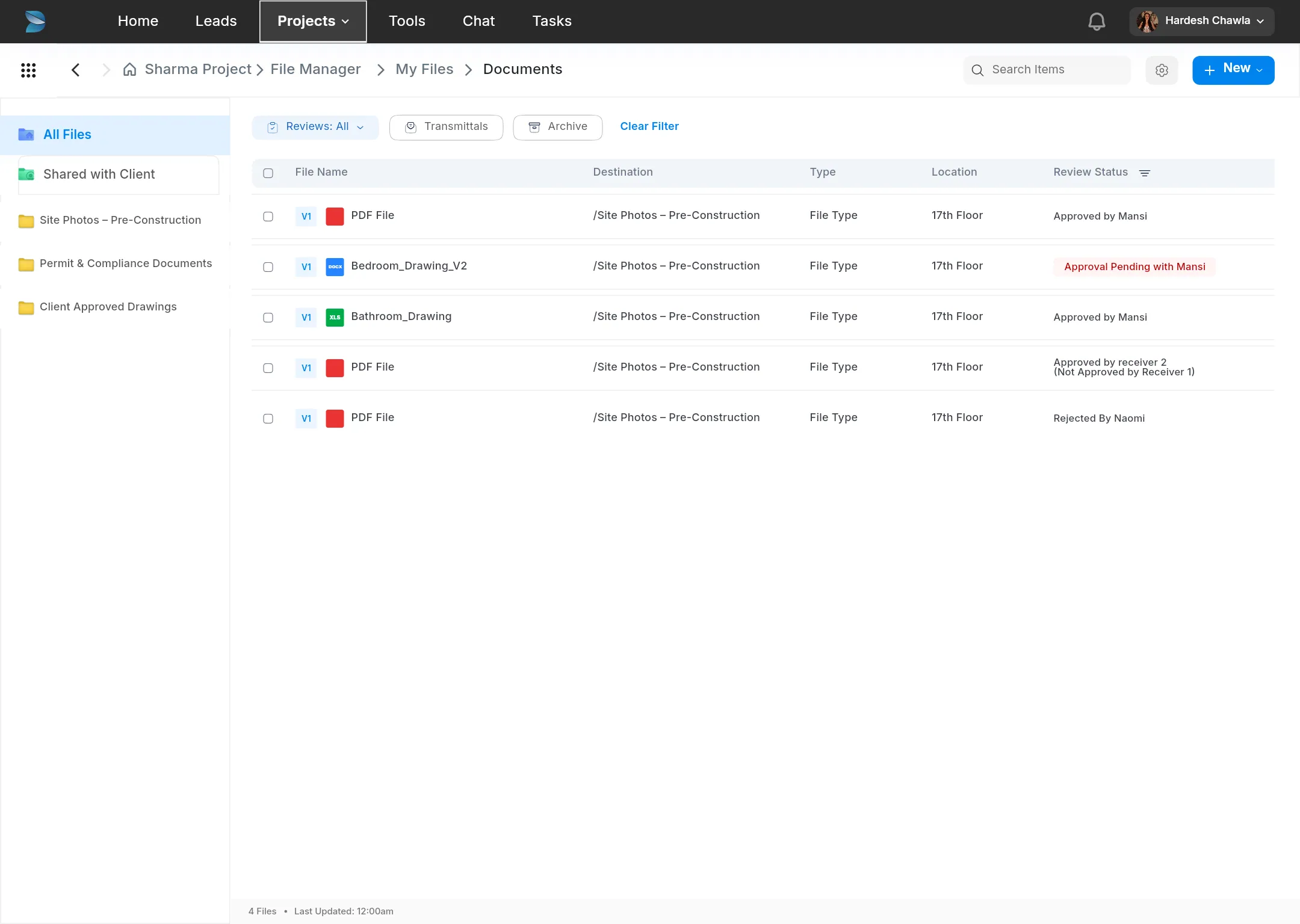
I marked eight issues in the shipped 3.0 screen and redrew it in 2026. The redesign is a proposal and hasn’t shipped.
“Waiting on me” first
A view and a tab with a count, so pending approvals are visible without filtering.
One status format
Every status is one coloured label: state first, person second. “Approved 1 of 2 · with Rahul”.
A colour per state
Waiting, partial, approved, rejected and draft can be told apart without reading.
Views apart from folders
So “Shared with client” no longer looks like a folder.
Fewer columns
The Destination column repeated the folder path above it, and Type repeated the file icon. The reason gets its own column.
The approval chain in a side panel
A reviewer can approve from the list when a quick look is enough.
Bulk actions
Review, transmit, move and download appear when files are selected.
Correct counts
The 3.0 footer said “4 files” above five rows. On a screen people treat as a record, that matters.
The proposal
The files screen redrawn with all eight changes, and one file on a phone.
Approval chain
- MSMansi ShahApproved at 10:02✓
- SMYouYour turn
- RORahul OjhaAfter you
Activity
- V2 uploaded by Hardesh11:40
- Approved by Mansi10:02
- 1 comment on the windowYesterday
What shipped
Five versions turned a file list into a record of reviews, decisions and transmittals. Here’s what shipped and what I’d do differently.
One file in 3.0, and the version that added each part
| DWGBedroom_Drawing.dwgV2 | Added in | |
|---|---|---|
| Versions | V1 and V2, kept in order | 1.0 |
| Feedback | 3 comments, kept on V2 | 1.2 |
| Review | Mansi, then Rahul, due Friday | 2.0 |
| GFC set | V1 stays in it until V2 is approved | 2.0 |
| Sent | TR-009, to the site team | 2.0 |
| Reason | Good for construction | 2.1 |
| Log | Every upload, request and move, with who and when | 3.0 |
What worked
- File states mapped together. The board gave the team one place to discuss uploads, approvals and rejections during design.
- Special cases as settings. A new firm could be set up with no new development.
Next time
- One design system, sooner. Three design kits ran side by side until 3.0, and every round paid for it.